
How to set up whatsapp floating icon with Updatrr

How to Add WhatsApp Floating Icon in Shopify Using Updatrr
Enhancing your Shopify store with a direct line of communication is a game-changer for conversion rates. With Updatrr, you can add a sleek WhatsApp floating icon in just a few minutes.
Follow this step-by-step guide to get your WhatsApp chat widget up and running.
Step 1: Access Your Online Store
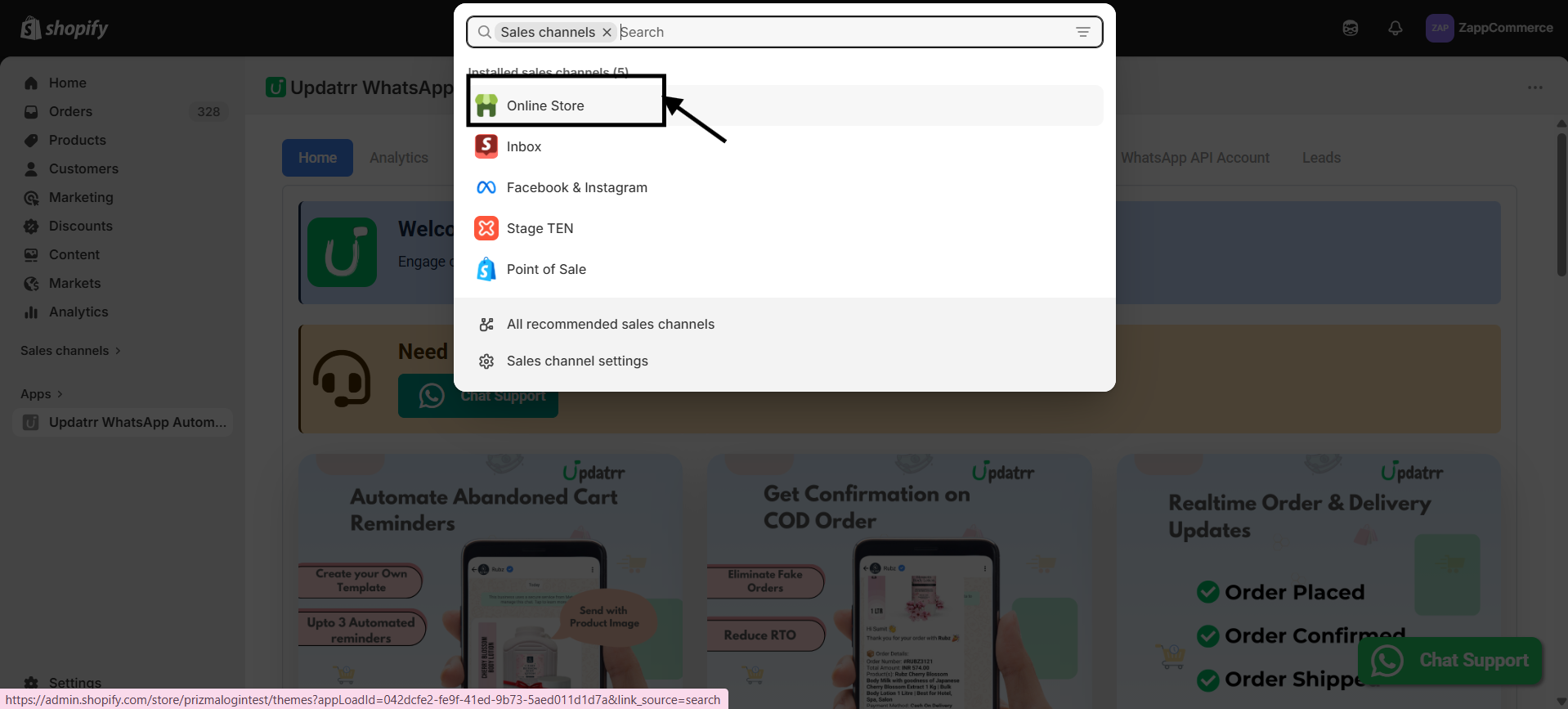
Log in to your Shopify Admin dashboard. Click on Online Store from the left-hand sidebar menu. If it's not visible, you can find it under the Sales Channels search bar.
Step 2: Open the Theme Editor
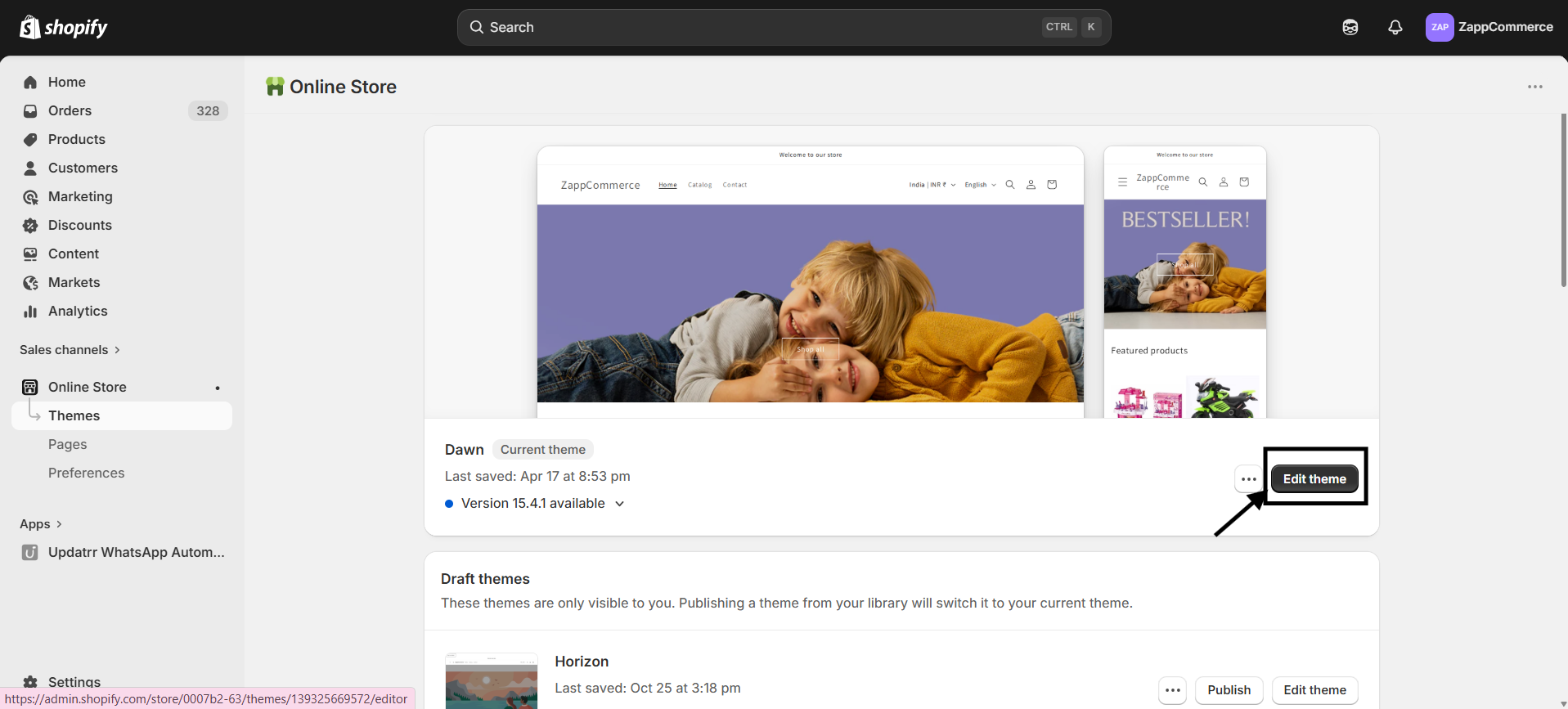
On the Themes page, locate your current live theme (e.g., Dawn). Click the Edit theme or Customize button to open the visual editor.
Step 3: Add a New Section to the Footer
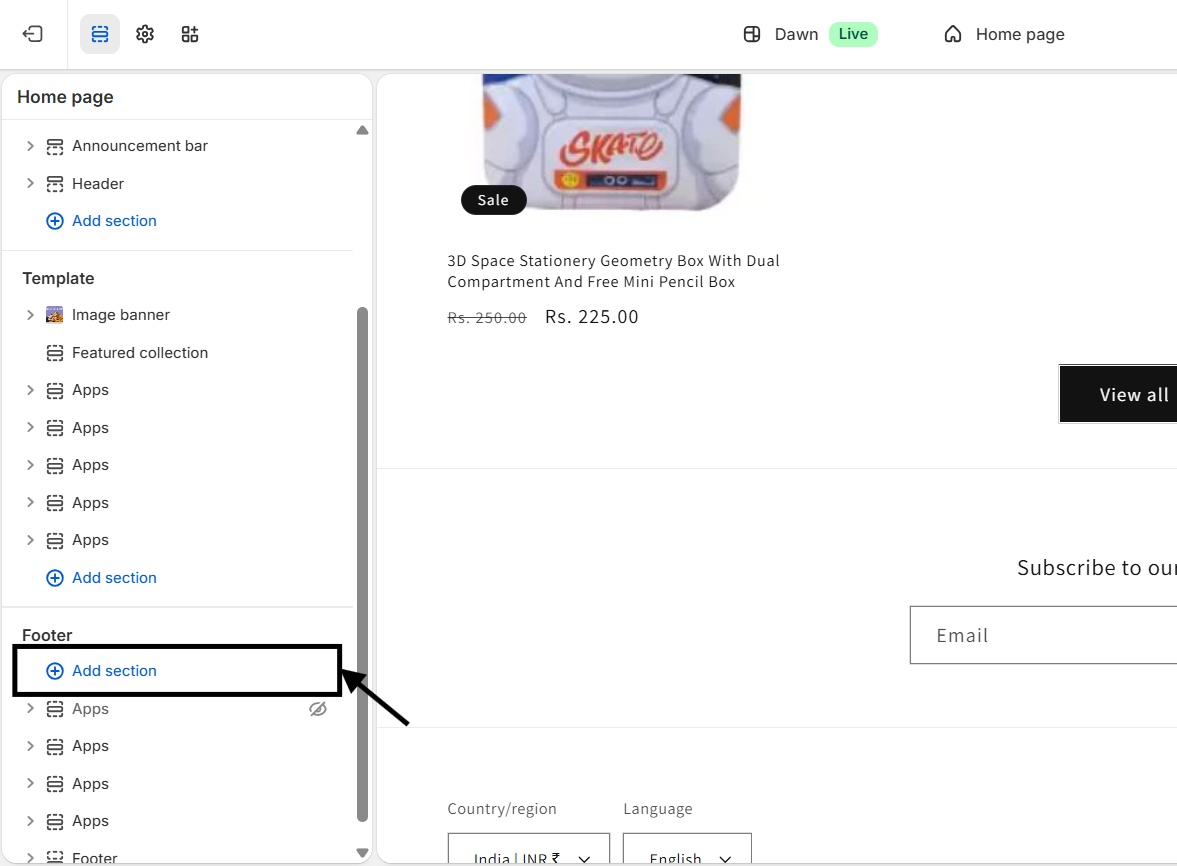
- Scroll down to the Footer section
- Click on (+) Add section
Step 4: Navigate to the Apps Tab
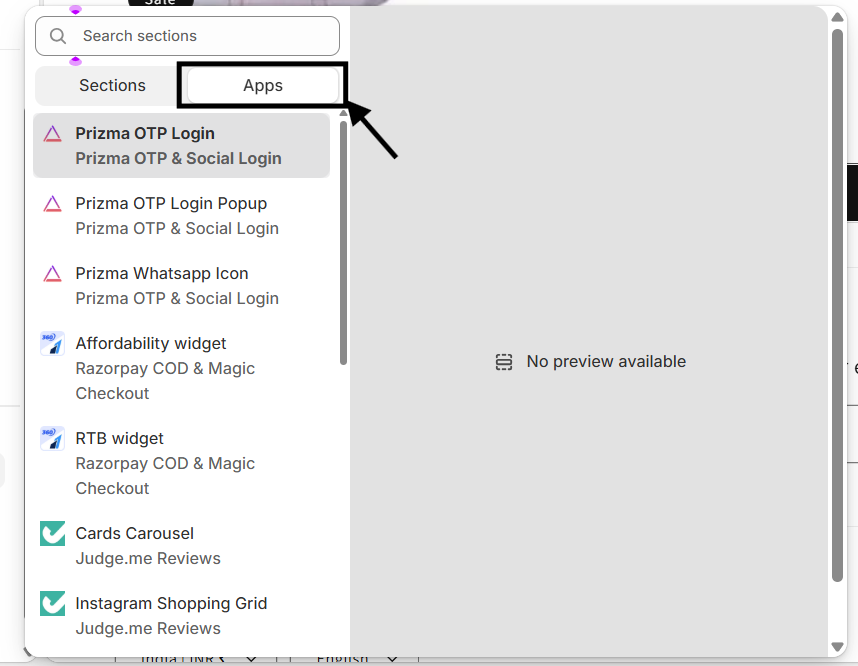
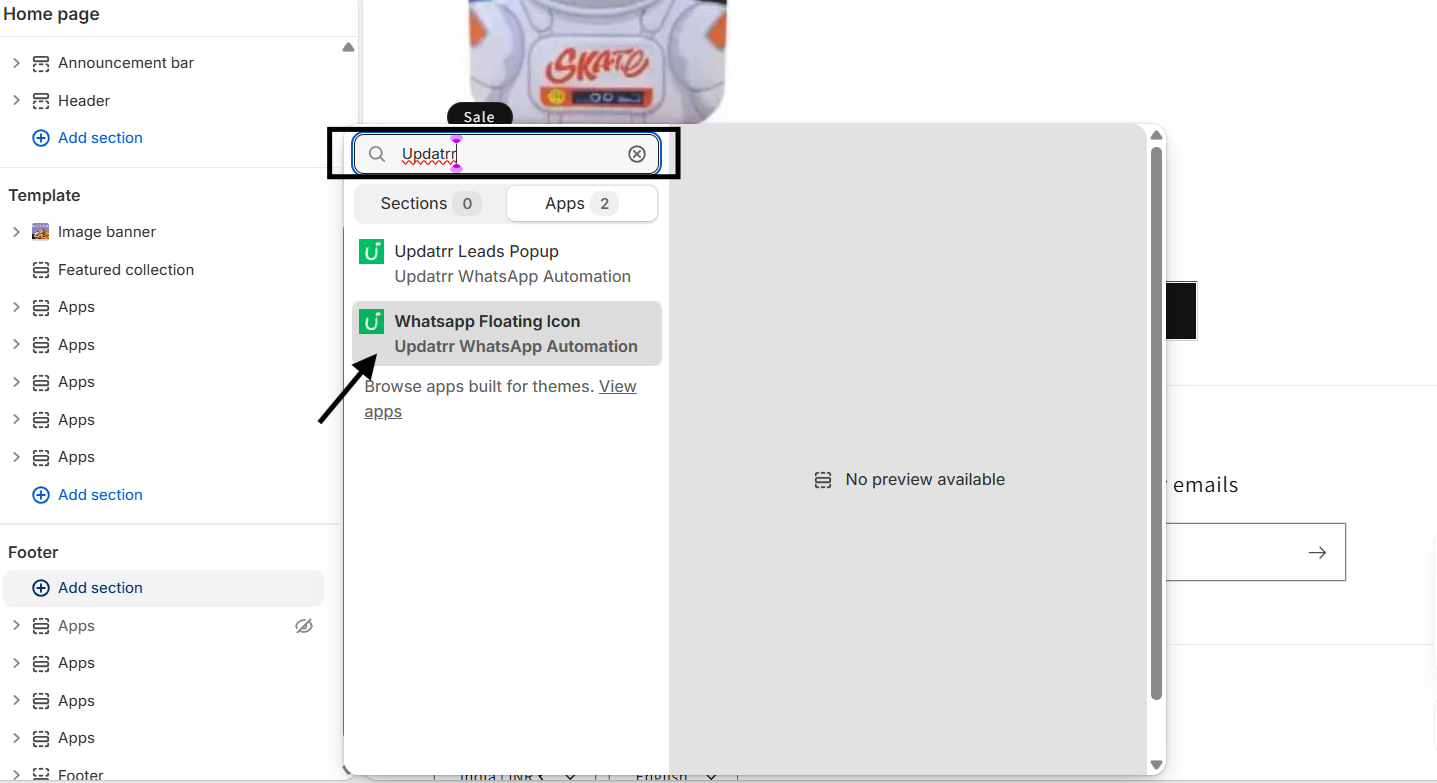
A popup window will appear. Switch from the Sections tab to the Apps tab to see your installed app integrations.
Step 5: Search for Updatrr
In the search bar, type Updatrr. You will see the WhatsApp Floating Icon option under the Updatrr WhatsApp Automation category. Click on it to add it to your footer.
Step 6: Configure Your WhatsApp Details
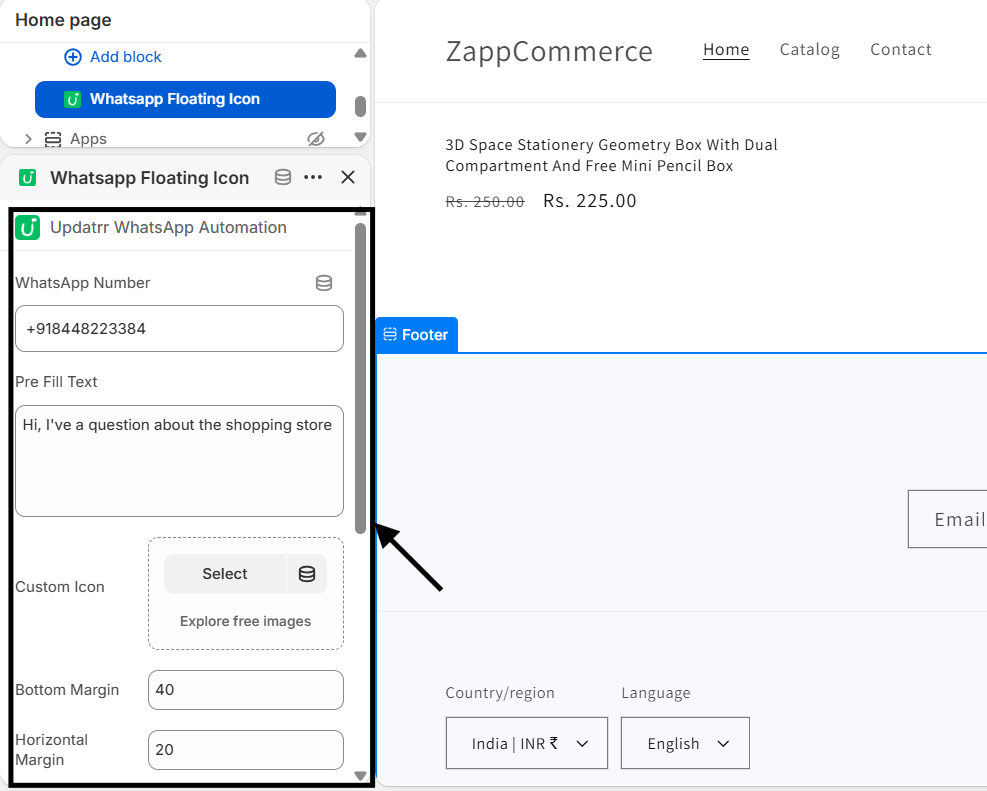
- WhatsApp Number: Enter your full phone number (including country code)
- Pre-Fill Text: Add a default message (e.g., "Hi, I have a question about the store")
- Custom Icon: Optionally upload your own branded icon
Step 7: Customize Position and Spacing
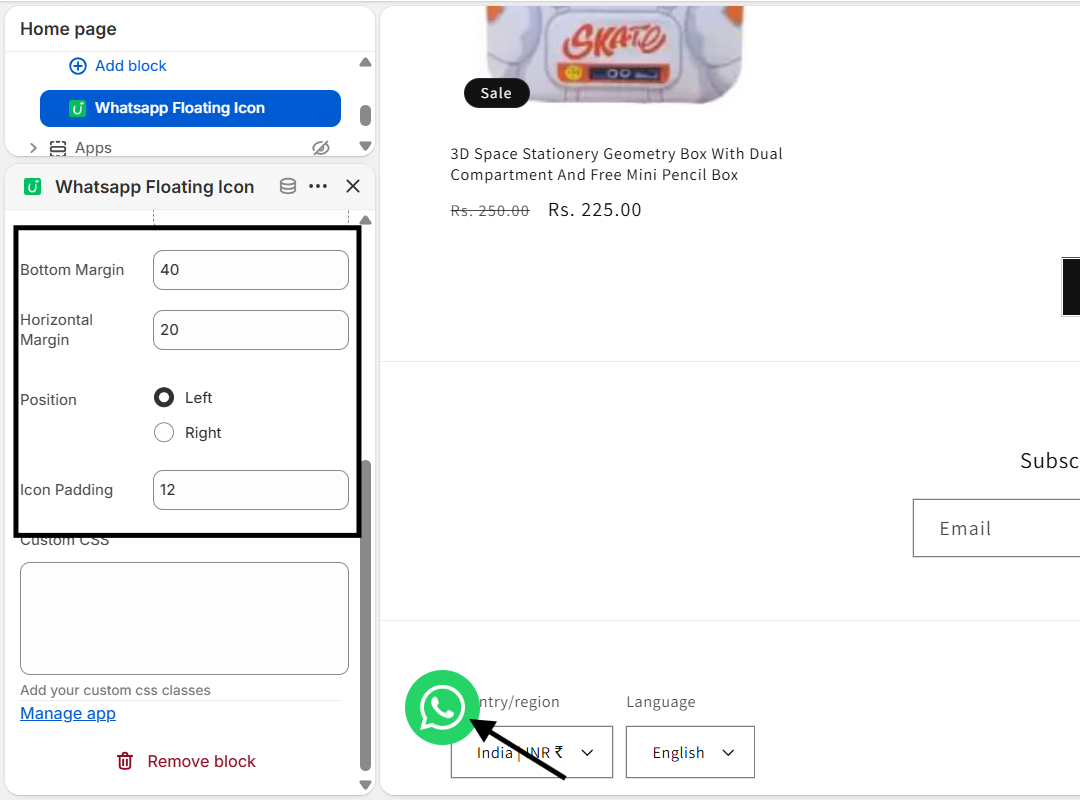
- Margins: Adjust bottom and horizontal spacing
- Position: Choose left or right side
- Icon Padding: Adjust size and spacing
Step 8: Save Your Changes
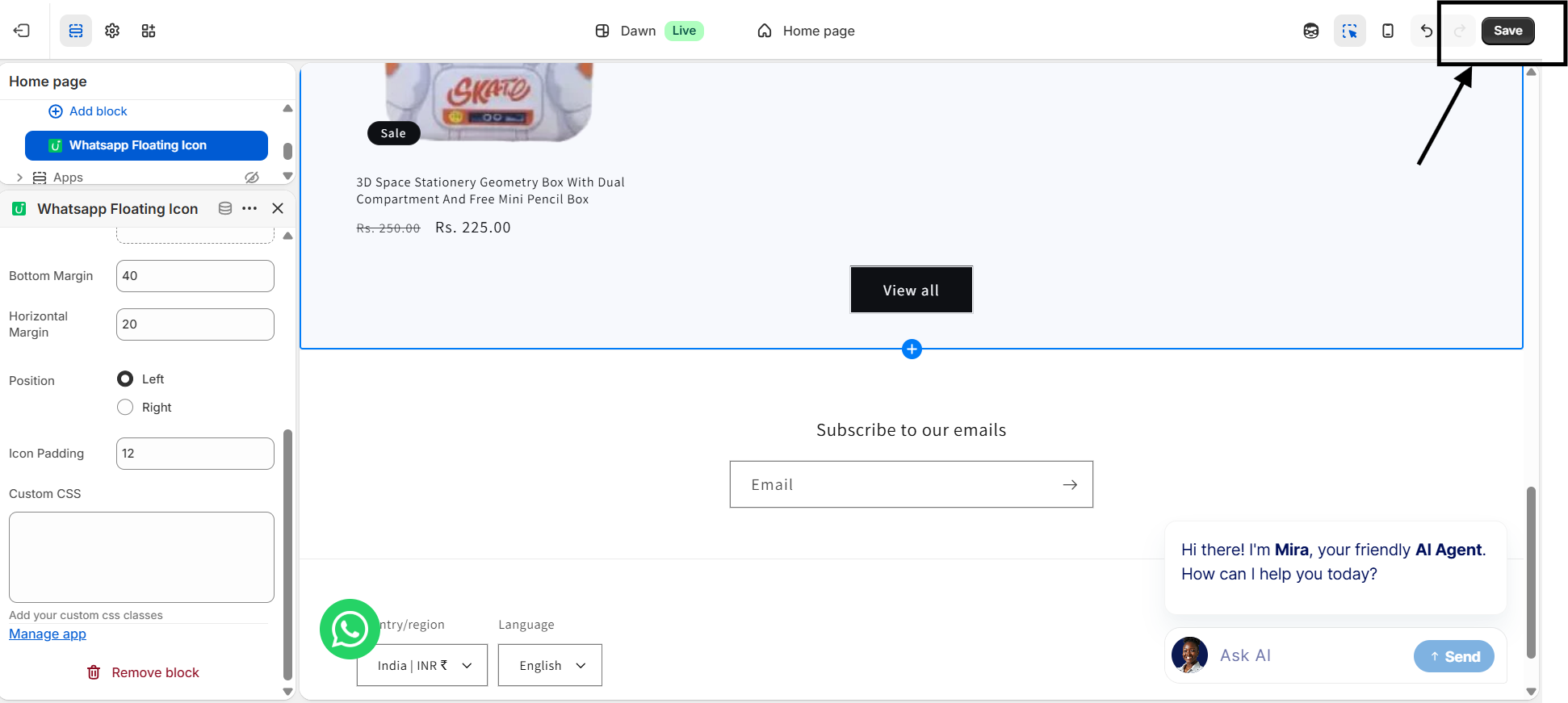
Once you are happy with the placement and settings, click the Save button in the top right corner. Your WhatsApp floating icon is now live!
Pro Tip
Keep your pre-fill text friendly and helpful. It reduces hesitation and encourages users to start a conversation quickly.
```